
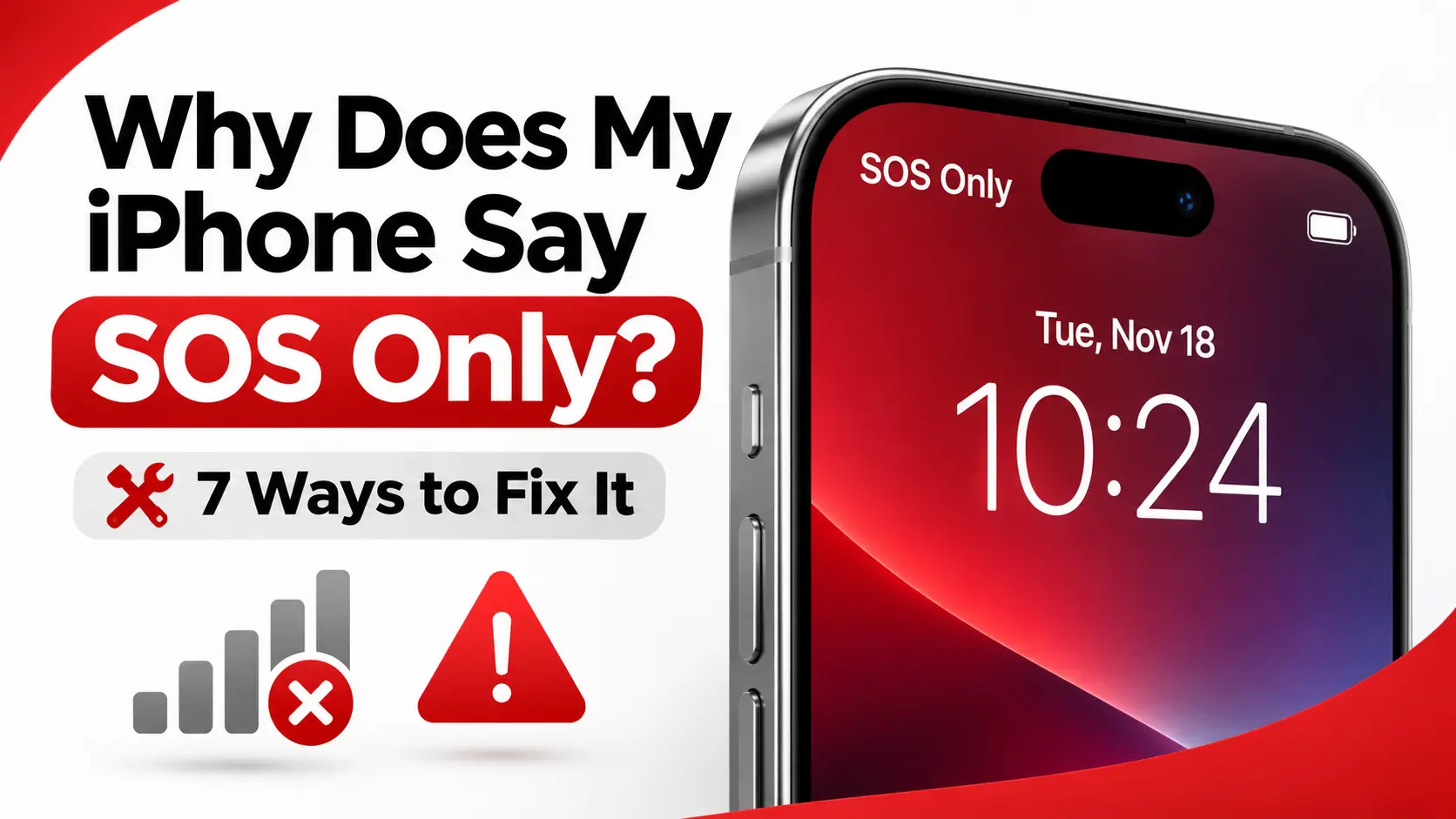
Why Does My iPhone Say SOS Only? 7 Ways to Fix It
Updated November 18, 2026
Have you ever looked at the top of your iPhone screen and noticed SOS or SOS Only instead of your usual cellular signal?
It can be frustrating, especially when you need to make an important call, send a text message, or use mobile data.
The good news is that seeing SOS Only doesn’t automatically mean your iPhone is broken.
In many cases, the problem is related to weak cellular coverage, a temporary carrier outage, an inactive SIM or eSIM, or a network connection issue.
Quick answer: If your iPhone says SOS Only, it means your device cannot connect to your regular carrier’s network. In the United States, it may still be able to make emergency calls through another available carrier network.
Start by turning Airplane Mode on for at least 15 seconds, turning it off, and restarting your iPhone. If the message remains, follow the seven troubleshooting methods below.
What Does SOS Only Mean on iPhone?
When your iPhone displays SOS or SOS Only in the status bar, it isn’t connected to your normal cellular network.
However, emergency calls may still be possible through another carrier’s network if a compatible network is available.
According to Apple, this behavior is supported in the United States, Canada, and Australia.
Here is how the common iPhone cellular status messages compare:
| Status | What It Means |
|---|---|
| SOS or SOS Only | Your regular carrier is unavailable, but emergency calling through another network may be possible. |
| No Service | Your iPhone is not connected to a cellular network. |
| Searching | Your iPhone is attempting to find a cellular network. |
| Normal signal bars | Your iPhone has established a connection to a cellular network. |
Important: SOS Only does not mean your phone has automatically connected to a satellite. Apple’s Emergency SOS via satellite is a separate feature available on supported iPhone models under specific conditions.
Why Does My iPhone Say SOS Only?
There are several possible explanations.
Weak or Missing Cellular Coverage
You may be in a location where your wireless provider has little or no coverage.
Buildings, underground parking garages, remote highways, and rural areas can interfere with cellular reception.
A Carrier Network Outage
Sometimes the problem isn’t your phone.
AT&T, Verizon, T-Mobile, and other wireless providers can experience local service interruptions that affect calls, text messages, or mobile data.
An Inactive SIM or eSIM
If you recently changed phones, switched carriers, or transferred your number, your cellular plan may not have activated correctly.
Incorrect Cellular Settings
An accidentally disabled cellular line or a temporary network configuration issue can prevent your iPhone from connecting.
Outdated Carrier Settings or iOS
Carrier settings updates help iPhones connect properly to cellular networks. Software bugs can also affect wireless connectivity, making updates worth checking.
Carrier Account or Device Problems
A suspended account, blocked device, damaged physical SIM, or hardware malfunction can also cause service interruptions.
The best solution depends on the cause. Try the following fixes in order, checking your signal after each step.
7 Ways to Fix SOS Only on iPhone
1. Turn Airplane Mode On and Off
The easiest place to start is by refreshing your iPhone’s cellular connection.
Apple recommends turning Airplane Mode on for at least 15 seconds before turning it off again.
Follow these steps:
- Open Settings on your iPhone.
- Turn on Airplane Mode.
- Wait at least 15 seconds.
- Turn Airplane Mode off.
- Give your iPhone a moment to reconnect.
Look at the top of your screen to see whether your usual carrier signal has returned.
This method can help when your iPhone temporarily loses its connection to a cellular network.
If SOS Only remains, move to the next fix.
2. Restart Your iPhone
Restarting your device can clear temporary software or connection problems.
For an iPhone with Face ID:
- Press and hold a volume button and the side button until the power-off slider appears.
- Drag the slider to turn off your iPhone.
- Wait for the device to shut down.
- Hold the side button until the Apple logo appears.
On models with a Home button, the power-off button combination may be different.
You can also use Settings > General > Shut Down on supported iOS versions.
Once your iPhone restarts, check whether the cellular signal returns.
If you recently installed an update or transferred an eSIM, restarting is especially worth trying.
3. Check Your Carrier’s Coverage and Outage Status
If Airplane Mode and restarting haven’t helped, check whether the issue is affecting other people nearby.
Start by moving to a different location, preferably outdoors or somewhere with a stronger signal.
If possible, ask someone using the same carrier whether their phone has service.
Then check your carrier’s official support resources:
AT&T
Visit the AT&T Outage Checker and check for reported wireless service interruptions in your area.
Verizon
Visit Verizon’s Network Outage Support or sign in to My Verizon to look for network notifications.
T-Mobile
Use T-Mobile’s Signal and No Service Troubleshooter or contact T-Mobile Support for local network information.
Remember that coverage maps describe expected availability; they don’t always confirm whether a temporary outage is happening at your exact location.
If your carrier confirms an outage, changing advanced settings on your iPhone may not help. Service may return when the carrier restores the network.
4. Check Your SIM Card or eSIM Settings
Your iPhone needs a properly configured cellular plan to connect to your carrier.
If your phone uses an eSIM, open:
Settings > Cellular
Then:
- Look for your phone number or cellular plan.
- Select the line you want to use.
- Make sure Turn On This Line is enabled.
- Check whether the line is associated with the correct carrier.
If you use two phone numbers, make sure the intended line is turned on.
If you recently switched from AT&T to Verizon or T-Mobile, confirm that the new carrier has finished activating your number.
For iPhones using a physical SIM card:
- Turn the device off.
- Carefully remove the SIM tray.
- Check that the SIM card is seated correctly and isn’t visibly damaged.
- Reinsert it and restart the device.
If the SIM is damaged or cannot be recognized, contact your carrier for a replacement.
Do not delete your eSIM simply to troubleshoot SOS Only. Removing an eSIM may require your carrier to reactivate the plan, and it won’t necessarily fix the original problem.
For additional information, see our guide on eSIM vs Physical SIM in 2026: Which Is Better for Your Smartphone?
5. Update Your Carrier Settings
Carrier settings help your iPhone communicate with your wireless provider.
Apple explains that these updates can improve cellular connectivity and support features such as 5G and Wi-Fi Calling.
To check for an update:
- Connect your iPhone to Wi-Fi.
- Open Settings.
- Select General.
- Tap About.
- Wait briefly to see whether a carrier settings update is offered.
- Follow the onscreen instructions if an update appears.
If no update appears, there may be nothing new to install.
You can also view your current carrier settings version in the About screen.
This step is particularly useful after changing cellular plans, activating a new eSIM, or moving to another wireless provider.
6. Update Your iPhone to the Latest iOS Version
An outdated iOS version may contain bugs that affect cellular connectivity.
Apple recommends keeping your device updated when troubleshooting SOS, No Service, or Searching messages.
To check for updates:
- Connect your iPhone to a reliable Wi-Fi network.
- Open Settings.
- Go to General > Software Update.
- Check whether an update is available.
- Back up important information before installing a major update.
- Follow the instructions to install the latest compatible version.
After installation, allow your iPhone to restart and reconnect to your carrier.
Important November 2026 notice for some AT&T users
AT&T has warned that some iPhone 18 Pro Max devices may experience a serious issue affecting calls, messages, data, and even emergency calls.
AT&T advises affected model owners to install the urgent iOS 27.0.1 update and the latest carrier settings update, including carrier version AT&T 72.1 where applicable.
AT&T also warns that certain devices already experiencing a complete loss of service may require hardware replacement rather than ordinary troubleshooting.
If you own an iPhone 18 Pro Max on AT&T, check the provider’s official troubleshooting advisory before attempting extensive resets.
7. Reset Your Network Settings
If none of the previous methods works and your carrier hasn’t reported an outage, consider resetting your network settings.
This can clear some incorrect network configurations.
To reset network settings:
- Open Settings.
- Select General.
- Tap Transfer or Reset iPhone.
- Select Reset.
- Tap Reset Network Settings.
- Enter your passcode if prompted.
- Confirm the reset.
Your iPhone will reset its network configuration.
Before doing this, understand what changes:
- Previously saved Wi-Fi network information may be removed.
- You may need to reconnect to Wi-Fi and enter passwords again.
- Certain cellular and VPN network settings are reset.
- Your photos, apps, and personal files are not erased by a network settings reset.
Make sure you choose Reset Network Settings, not Erase All Content and Settings or Delete All eSIMs.
Once the reset finishes, check whether your iPhone reconnects to cellular service.
If SOS Only remains, you may need assistance from your wireless carrier or Apple.
What to Do If Your iPhone Still Says SOS Only
If you’ve tried all seven fixes without success, avoid repeating the same resets.
Instead, contact your carrier and explain which troubleshooting steps you’ve already completed.
Ask the provider to verify:
- Whether your cellular account is active and in good standing.
- Whether there is a local network outage.
- Whether your SIM or eSIM is activated correctly.
- Whether your device is blocked from cellular service.
- Whether your phone needs a replacement SIM or new eSIM activation.
- Whether your device has a known model-specific service issue.
If the carrier confirms that the network and your account are working correctly, the next step may be contacting Apple Support.
Apple’s support tools can help investigate possible hardware or software problems.
On iPhones running iOS 18 or later, the Apple Support app may also provide additional diagnostics.
Can You Use Wi-Fi Calling When Your iPhone Says SOS Only?
In some cases, yes.
If your wireless provider supports Wi-Fi Calling and the feature has already been enabled for your line, you may still be able to make and receive calls over a compatible Wi-Fi connection.
To check:
- Open Settings > Cellular.
- Select the appropriate line if you use multiple SIMs.
- Tap Wi-Fi Calling.
- Turn on Wi-Fi Calling on This iPhone, if available.
- Complete any required carrier setup, including your emergency address.
Wi-Fi Calling can be helpful at home, in an office, or anywhere with reliable Wi-Fi but poor cellular reception.
However, it isn’t guaranteed to work during every carrier outage.
Emergency warning: If you need urgent help, try calling 911. When SOS Only is displayed, emergency calling may work through another available carrier network, but successful connection isn’t guaranteed. If your phone cannot connect, use another available phone or an appropriate emergency communication method.
Does SOS Only Mean Your iPhone Is Connected to a Satellite?
No.
The SOS Only indicator and Apple’s satellite emergency features are different.
SOS Only generally means that your iPhone cannot connect to your normal carrier but may be able to place emergency calls through another cellular network.
Emergency SOS via satellite, on the other hand, is available on supported iPhone 14 or later models in supported countries and regions. It can help contact emergency services when ordinary cellular and Wi-Fi connections are unavailable.
Satellite communication requires specific conditions and may involve following onscreen instructions to establish a connection outdoors.
Seeing SOS Only in the status bar does not mean the satellite feature is already active.
Frequently Asked Questions
Why does my iPhone say SOS Only when I have Wi-Fi?
Wi-Fi and cellular service are different connections. Your iPhone may have working Wi-Fi internet while being unable to connect to your wireless carrier’s cellular network.
Why does my iPhone suddenly say SOS Only?
Common causes include temporary loss of cellular coverage, carrier outages, a disabled cellular line, or SIM and eSIM activation problems.
Why does my iPhone say SOS Only after an iOS update?
A connection problem that appears after an update may be related to software, carrier settings, or an unrelated network interruption. Restart your phone, check for carrier settings updates, and contact your carrier if the problem continues.
Why does my Verizon iPhone say SOS Only?
Your iPhone may be outside Verizon’s coverage, affected by an outage, or experiencing a SIM, eSIM, or account issue. Check Verizon’s official network notifications before changing advanced settings.
Why does my AT&T iPhone say SOS Only?
Potential causes include network outages, an inactive cellular plan, or an issue specific to your device. Some iPhone 18 Pro Max users should also review AT&T’s November 2026 software and hardware advisory.
Why does my iPhone say SOS Only after switching carriers?
Your new SIM or eSIM may not be fully activated, your number transfer may still be in progress, or the device may have a carrier compatibility issue. Contact your new provider to confirm activation.
Will resetting network settings delete my photos?
No. Reset Network Settings does not erase your photos, apps, or personal documents. However, it can remove saved network settings and Wi-Fi connection information.
How do I get my iPhone out of SOS mode?
Start by enabling Airplane Mode for at least 15 seconds, then disable it. Restart your iPhone and check the carrier’s coverage and outage status. If the issue remains, review your SIM or eSIM, update carrier settings and iOS, and consider a network settings reset.
Final Thoughts
Seeing SOS Only on your iPhone can be stressful, but it doesn’t always indicate a serious device problem.
In many situations, simple steps such as toggling Airplane Mode, restarting the device, or checking for a carrier outage can help you identify or resolve the issue.
If your iPhone still cannot connect, check its SIM or eSIM settings, install available software updates, and contact your wireless provider.
The most important thing is to identify whether the problem comes from your iPhone, your cellular plan, or your carrier’s network before making unnecessary changes.
For more smartphone troubleshooting guides, carrier tips, and practical technology advice, explore the Smartphones section at PocketTechGuide.com.
Official Sources and Further Reading
- Apple Support — If You See SOS, No Service, or Searching
- Apple Support — Update Carrier Settings
- Apple iPhone User Guide — Reset iPhone Settings
- Apple Support — Satellite Connectivity on iPhone
- AT&T — Troubleshoot Wireless Call Issues
- Verizon — Network Outage Support
- T-Mobile — Signal and No Service Troubleshooting