
Updated: November 18, 2026
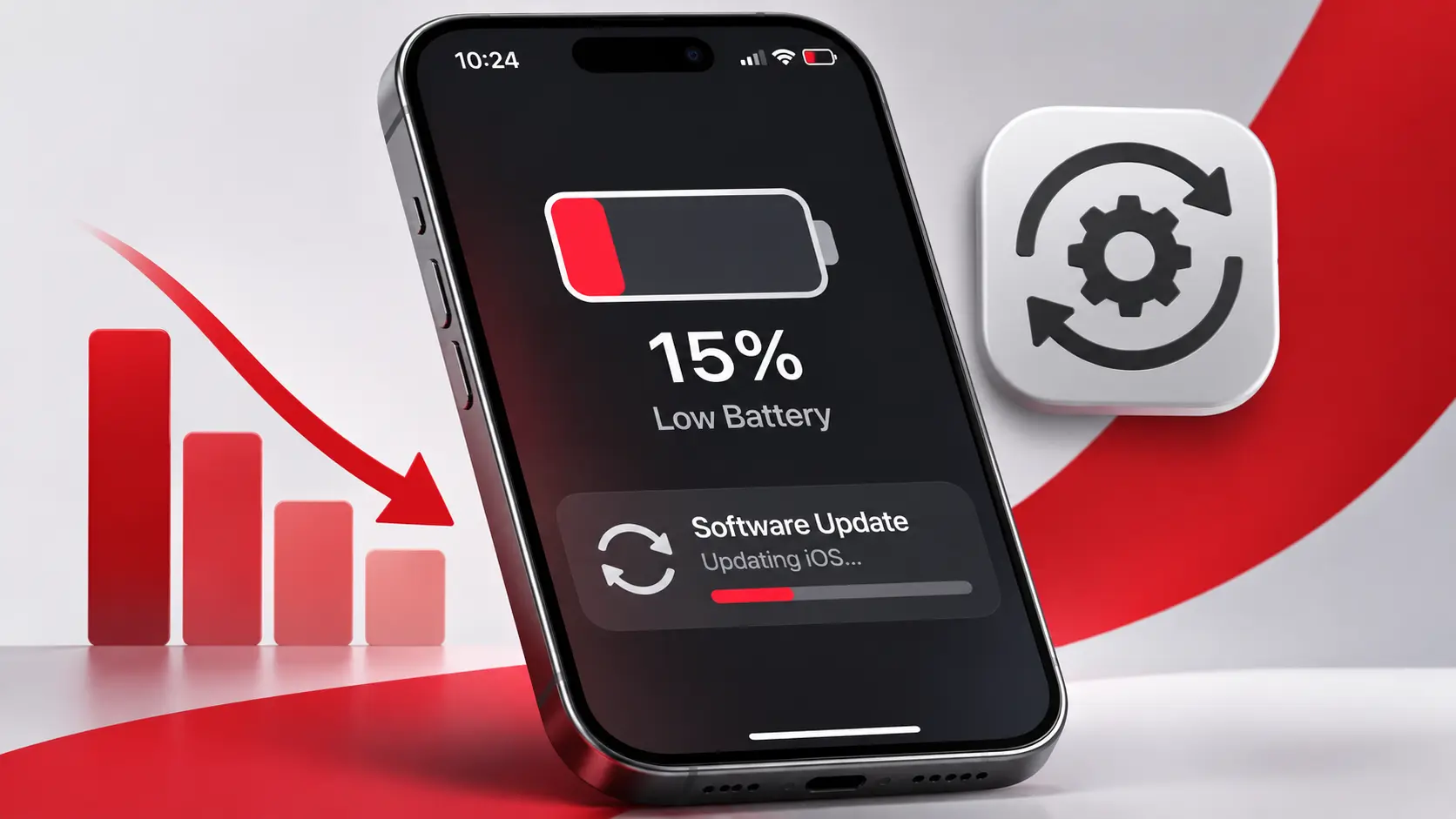
Did your iPhone battery start draining faster after installing an iOS update? Maybe your phone used to last all day, but now you find yourself reaching for the charger before dinner.
If that sounds familiar, you’re not alone in wondering whether the update caused a problem.
The good news is that increased battery usage immediately after an iOS update can be temporary. Your iPhone may still be performing background tasks related to the installation, which can affect battery life and device temperature.
However, not every battery problem is caused by the update itself.
In this guide, we’ll explain why iPhone battery life sometimes decreases after a software update, how to identify what’s using your battery, and seven practical ways to improve it.
Why Does iPhone Battery Drain Faster After an iOS Update?
Installing an iOS update involves more than downloading software and restarting your phone.
After installation, your iPhone may continue processing update-related tasks in the background while you use the device normally.
According to Apple, these activities can temporarily affect battery life and thermal performance.
You may even see a message called Ongoing iOS Update when you open Settings > Battery.
Other possible reasons include:
- Apps performing more background activity than usual.
- Increased screen-on time after exploring new features.
- Apps or settings behaving differently after the update.
- Weak cellular coverage causing additional power consumption.
- An aging battery with reduced capacity.
- A software or app issue that needs another update.
The timing of the problem can provide a useful clue, but a sudden drop in battery life doesn’t automatically prove that iOS is defective.
How Long Does Battery Drain Last After an iOS Update?
Apple recommends waiting a few days if battery life seems worse immediately after a software update.
Some update-related processes can continue in the background even though your iPhone is already usable.
During this period, you might notice the phone getting warmer or using more power than expected.
If your battery life gradually returns to normal, temporary background activity may have been the explanation.
If excessive battery drain continues after several days, especially during light use, it’s time to investigate further.
You don’t need to wait if your iPhone is unusually hot, displaying a temperature warning, or experiencing other serious problems.
7 Ways to Fix iPhone Battery Draining After an Update
1. Let the Update Finish Its Background Tasks
Before changing multiple settings, check whether your iPhone is still completing update-related work.
Open:
Settings > Battery
Look for an insight such as Ongoing iOS Update.
If that message appears, your iPhone may still be processing tasks associated with the recent software installation.
What to do:
- Connect your iPhone to a reliable Wi-Fi network.
- Charge it normally in a well-ventilated location.
- Avoid heavy gaming or demanding apps if the device is already warm.
- Continue using the phone normally.
- Check battery usage again over the next few days.
You don’t need to leave the phone charging continuously.
If the message disappears and battery life improves, no further troubleshooting may be necessary.
2. Find Out Which Apps Are Using Your Battery
One of the most useful troubleshooting tools is already built into your iPhone.
On current iOS versions, open:
Settings > Battery
Review the battery usage information and the apps or system activities consuming the most power.
On supported versions, you can select View All Battery Usage to compare usage across previous days.
Pay attention to the following indicators:
Background Activity
An app may be using energy while you’re not actively using it. Examples include navigation, syncing photos, or fetching information.
On-Screen Activity
If you’ve been using your iPhone more frequently since the update, higher battery consumption may reflect increased screen time rather than a technical problem.
Low Cellular Coverage
An iPhone may consume additional power when searching for a cellular connection or operating in an area with a weak signal.
Notifications
Frequently waking the device for alerts can contribute to battery usage.
Don’t assume that the app at the top of the battery usage list is malfunctioning. It may simply be the app you use most often.
Instead, compare its recent behavior with how you normally use your phone.
3. Restart Your iPhone and Check for App Updates
If one or more apps seem to be using unusually high amounts of power, restarting your iPhone is a sensible next step.
On iPhones with Face ID:
- Hold a volume button and the side button.
- Drag the power-off slider.
- Wait until your phone turns off.
- Hold the side button to restart it.
You can also use Settings > General > Shut Down.
Next, check whether your apps have available updates.
- Open the App Store.
- Tap your account picture.
- Open the app updates section.
- Install available updates for apps you regularly use.
You should also check:
Settings > General > Software Update
If Apple has released another update compatible with your phone, review its details and consider installing it after backing up important data.
App and software updates may include bug fixes and compatibility improvements, although they won’t necessarily resolve every battery problem.
4. Use Low Power Mode or Adaptive Power
If you need your battery to last longer while investigating the problem, Apple’s power-saving features can help.
Low Power Mode reduces certain background activities and power-intensive features.
On iPhone 15 and newer models, you can generally find it under:
Settings > Battery > Power Mode > Low Power Mode
On iPhone 14 and earlier models, go to:
Settings > Battery > Low Power Mode
When enabled, Low Power Mode can limit background refresh, some visual effects, automatic downloads, and other activities.
The battery icon becomes yellow when Low Power Mode is active.
What about Adaptive Power?
On supported iPhones running iOS 26 or later, Adaptive Power can automatically make performance adjustments when your power usage is higher than usual.
Check Settings > Battery > Power Mode to see whether your device offers it.
This feature is not available on every iPhone model.
Low Power Mode and Adaptive Power can help you manage battery life, but they aren’t substitutes for diagnosing a persistent hardware or software problem.
5. Review Background App Refresh and Location Permissions
Apps that regularly fetch information or use location services can contribute to battery consumption.
If your battery usage report points to a particular app, review its settings.
Background App Refresh
Go to:
Settings > General > Background App Refresh
You can limit background refresh for apps that don’t need frequent updates.
For example, a news app might not need to refresh constantly when you’re not using it.
However, avoid disabling features indiscriminately. Some apps need background activity to provide useful functions.
Location Services
Open:
Settings > Privacy & Security > Location Services
Review apps that have permission to access your location.
For apps that don’t need continuous access, consider using While Using the App instead of Always, when appropriate.
Be careful with navigation, safety, and location-sharing apps. Changing these permissions may affect their intended behavior.
The goal is to reduce unnecessary activity, not to disable important functions.
6. Check Screen Brightness and Cellular Signal
Your display and cellular connection can have a noticeable effect on battery life.
If you’ve been using new iOS features more frequently, your screen may simply be staying on longer than before.
Start with these adjustments:
Reduce Excessive Screen Brightness
Open Control Center and lower brightness to a comfortable level.
Use Auto-Brightness
Check Settings > Accessibility > Display & Text Size > Auto-Brightness.
Auto-Brightness can adjust the display to changing lighting conditions.
Check Auto-Lock
Open Settings > Display & Brightness > Auto-Lock and choose a reasonable interval.
Review 5G Settings
On supported iPhones and carrier plans, you can use 5G Auto to balance cellular performance and battery consumption.
The setting is typically located under:
Settings > Cellular > Cellular Data Options > Voice & Data
If your phone uses two lines, select the relevant cellular line first.
Apple explains that 5G Auto can switch to LTE when 5G speeds don’t provide a noticeably better experience.
Weak network coverage can also increase battery usage. If your phone struggles to find a cellular signal, test it in an area with better reception.
If your iPhone displays SOS Only or repeatedly loses service, read our guide: Why Does My iPhone Say SOS Only? 7 Ways to Fix It.
7. Check Battery Health and Know When to Get Help
If battery life remains unusually poor after the update settles and you’ve reviewed the apps, check the condition of your battery.
Rechargeable batteries gradually lose capacity as they age.
An iOS update cannot restore lost physical battery capacity.
For iPhone 15 and newer models:
Open Settings > Battery > Battery Health.
For iPhone 14 and earlier models:
Open Settings > Battery > Battery Health & Charging.
Depending on your model, review the available maximum-capacity and battery-health information.
If your iPhone displays a Service recommendation, Apple advises considering battery replacement.
A battery showing reduced capacity isn’t necessarily malfunctioning, but it may provide fewer hours of use between charges.
If your iPhone becomes unusually hot, shuts down unexpectedly, or still drains excessively after several days of normal use, consider contacting Apple Support.
Avoid attempting to repair or replace a lithium-ion battery yourself unless you have the appropriate training and equipment.
Is iOS 27 Causing Battery Drain?
iOS 27 was released in 2026, and some users may notice battery changes after upgrading.
However, experiencing battery drain after installing iOS 27 doesn’t prove that the operating system has a widespread battery bug.
Apple notes that software updates may affect performance and battery life, including while background tasks are still running.
Before assuming that iOS 27 is responsible, check:
- Whether the update was installed recently.
- Whether an Ongoing iOS Update message appears.
- Whether a particular app is using substantially more power.
- Whether battery usage decreases after several days.
- Whether a newer compatible iOS update is available.
If the issue continues, Apple’s battery usage information can help you narrow down the cause.
Should You Reset Your iPhone to Fix Battery Drain?
Usually, a factory reset shouldn’t be your first response to battery drain after an update.
Erasing your iPhone removes personal content and settings, and it may not fix a problem caused by temporary background processing, normal battery aging, or cellular coverage.
Try the less disruptive troubleshooting steps first.
If Apple Support recommends a more extensive reset or restore, back up your iPhone before proceeding and make sure you understand what data could be affected.
Frequently Asked Questions
Is it normal for an iPhone battery to drain fast after an iOS update?
Temporary increased battery usage can happen after an update because some installation-related tasks continue in the background. Apple recommends checking again after a few days.
How many days should I wait after an iOS update?
Apple advises waiting a few days before reassessing battery life. There’s no guaranteed recovery time for every iPhone because the amount of background work and usage patterns vary.
Why is my iPhone battery draining overnight after an update?
Possible explanations include background activity, poor cellular signal, notifications, app syncing, or update-related tasks. Check Settings > Battery to identify which activities contributed to overnight power use.
Does restarting an iPhone help with battery drain?
Restarting can help resolve temporary software issues, but it won’t repair a degraded battery or fix every software bug.
Should I turn off Background App Refresh?
You can limit it for apps that don’t need background updates. It’s generally better to review the apps consuming battery than to disable every background feature without investigating.
Will Low Power Mode damage my iPhone battery?
No. Low Power Mode is a built-in Apple feature designed to reduce power consumption. Some background activities and visual features may be limited while it is active.
Can an iOS update reduce battery health permanently?
Battery health can change over time because rechargeable batteries chemically age. A software update may change how battery information is displayed or calculated, but battery drain immediately after an update doesn’t automatically mean the update physically damaged your battery.
When should I contact Apple Support?
Consider contacting Apple if battery drain remains severe after several days, your phone unexpectedly shuts down, Battery Health recommends service, or the device experiences persistent abnormal heat or other symptoms.
Final Thoughts
If your iPhone battery started draining faster after an update, don’t immediately assume that your battery is damaged.
Apple confirms that some update-related processing continues in the background and can temporarily affect battery life.
Start by checking the Battery screen and allowing a few days for update-related activity to settle.
If the problem continues, examine app usage, install available updates, review power settings, and check battery health.
The best fix depends on identifying what’s actually consuming the power.
For more practical iPhone troubleshooting guides and smartphone advice, explore the Smartphones section of PocketTechGuide.com.